

Step by step: how to read PAYWISE API logs for troubleshooting
Every request made with your API keys is logged. Learn what each column means, what the status codes tell you, and how to find the cause of a failed request.
Published 04 October 2026 3 min read

When a payment does not appear, or your integration suddenly returns errors, the API Logs page in your dashboard is the first place to look. Every request made with your API keys is recorded there.
Step 1: Open the log
Go to API Logs in the Developers section of your dashboard. Each row is one request, newest first, with six columns:
- Method and Endpoint: what was called, for example
POST /api/v1/transactions. - Status: the HTTP status PAYWISE answered with, coloured by type.
- Response time: how long PAYWISE took to answer.
- Request ID: the
X-Request-Idof that response. - Time: when it happened (WIB).
Logs are kept for 60 days.
Step 2: Read the status code
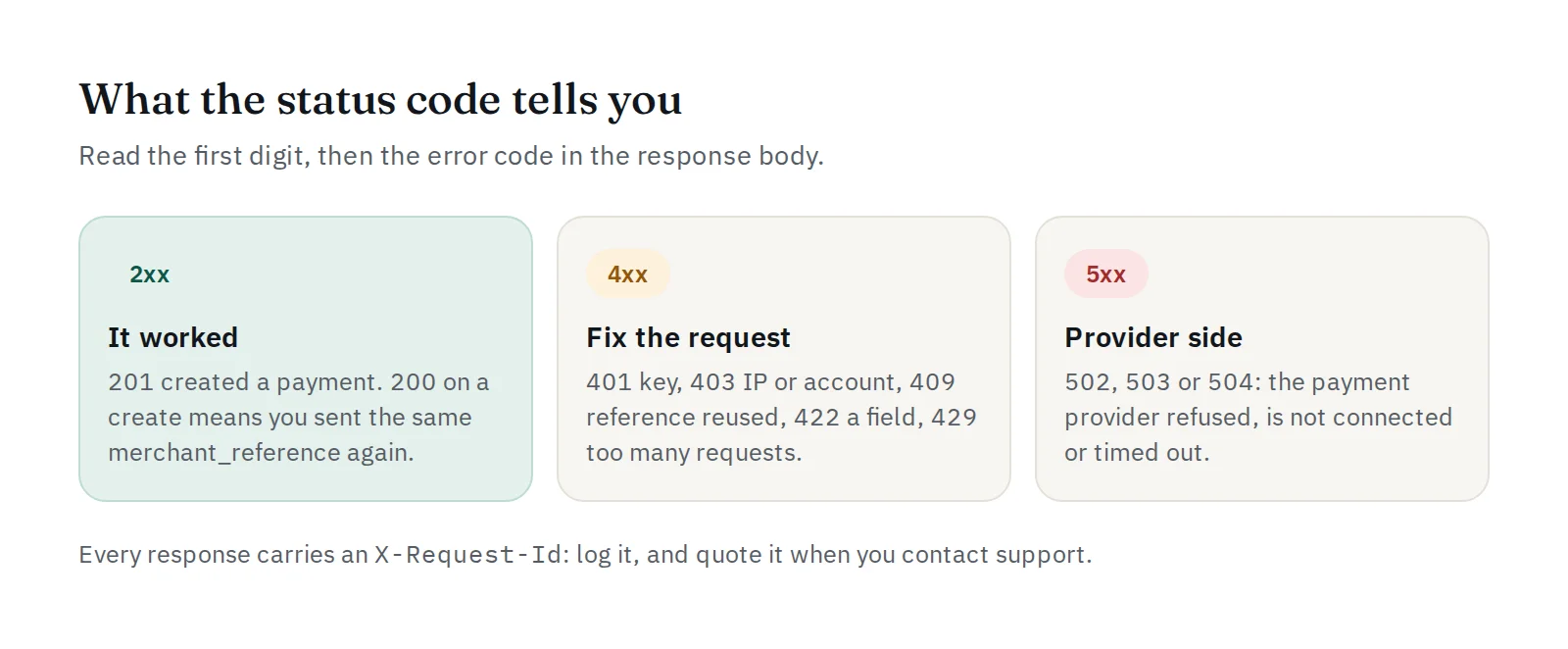
- 2xx: it worked.
201means a new payment was created.200on a create means you sent amerchant_referencethat already exists with the same amount and method, so the original payment was returned. - 4xx: something in the request must change. Retrying the same request will not help.
- 5xx: the payment provider had a problem. These are rare, and the transaction is marked failed so you can create a new one.
Step 3: Match the error code
The response body always contains error.code. The most common ones:
| Status | Code | What to do |
|---|---|---|
| 401 | INVALID_API_KEY |
Check the key and the Authorization: Bearer header |
| 401 | API_KEY_REVOKED |
Create a new key; this one was revoked |
| 403 | IP_NOT_ALLOWED |
Add your server's IP to the key's allowed list |
| 409 | DUPLICATE_REFERENCE |
Same merchant_reference with a different amount or method: use a new reference |
| 422 | VALIDATION_ERROR |
A field is missing or wrong, for example customer_id or amount |
| 429 | RATE_LIMITED |
More than 60 requests a minute on one key: slow down and retry |
| 502 / 504 | PROVIDER_ERROR / PROVIDER_TIMEOUT |
The provider refused or did not answer: create a new payment |
The full list is in the API documentation.
Step 4: Look at the response time
Most requests answer quickly. A create request that takes several seconds usually means the payment provider was slow. If many requests are slow at the same time, check the status page.
Step 5: Use the request ID
Log the X-Request-Id header in your own system for every call. When you contact support, send that ID: it points to the exact request, so the problem can be found in minutes instead of hours.
Tips
- Sandbox and live requests are both logged, so you can debug before going live.
- No row at all for a request? It never reached PAYWISE: check your server's network, DNS or firewall.
- Webhook problems are on a different page: see Webhooks for every delivery attempt and its result.