

Handling expired payments and payments that stay pending too long
How long QRIS and USDT payments stay open, what to do when one expires, why a retry needs a new merchant_reference, and how to handle a late payment.
Published 11 October 2026 4 min read

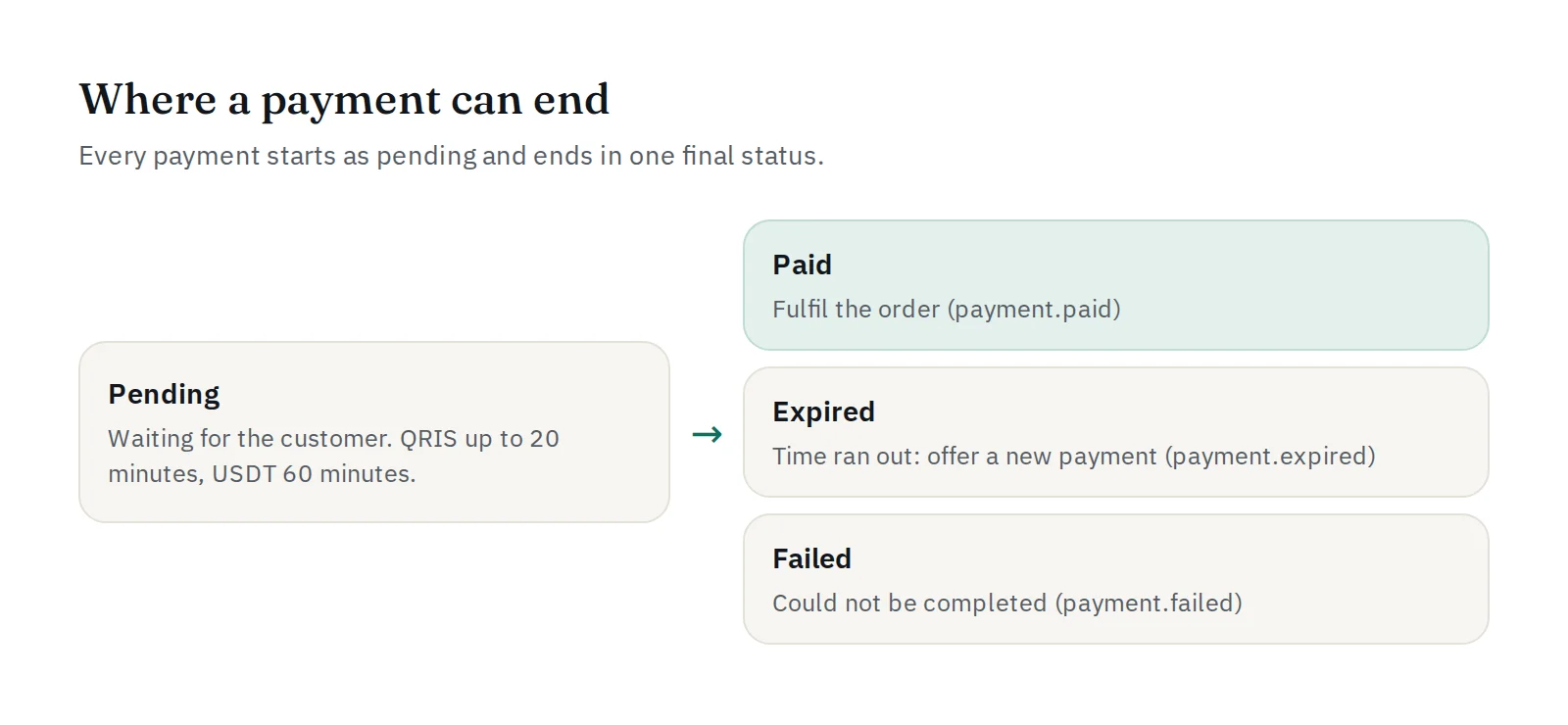
Every PAYWISE payment starts as pending and ends in one final status: paid, expired or failed. Most of the time this is quick. But customers get distracted, phones run out of battery, and networks are slow. This guide explains what to do when a payment expires, or seems to stay pending for too long.
How long a payment stays open
| Method | Payable for | Set with |
|---|---|---|
| QRIS | 20 minutes by default | expires_in: 60 to 1,200 seconds |
| USDT (BEP20) | 60 minutes | fixed |
The exact moment is in expires_at in the API response. Show a countdown on your page (the hosted payment page does this for you), so customers know how much time they have.
After that time, PAYWISE checks the payment one last time and marks it expired. You receive the payment.expired webhook if you subscribed to it.
"Pending" for a long time: what is normal?
- QRIS: a payment that is still pending a few minutes after the customer says they paid is unusual. Open it in the dashboard and press Check status now: PAYWISE asks the payment provider directly.
- USDT: a blockchain payment needs confirmations, so a few minutes between sending and paid is normal.
If you poll from your server, use GET /api/v1/transactions/{reference}, but do not poll every second: the API allows 60 requests per minute per key. The webhook is the better way to wait. See webhook vs redirect.
When a payment expires
- Do not ship. No money arrived.
- Keep the order, and mark it as "payment expired" rather than deleting it.
- Offer a new payment with a clear button such as "Pay again".
A retry needs a new merchant_reference
merchant_reference is also your idempotency key. If you create a payment again with the same reference and the same amount, PAYWISE returns the original payment, which is already expired. For a new attempt, use a new reference:
$attempt = $order->payment_attempts + 1;

$payment = $paywise->createTransaction([
    'merchant_reference' => 'ORDER-' . $order->id . '-' . $attempt, // ORDER-1042-2
    'amount'             => $order->total,
    'payment_method'     => 'QRIS',
    'customer_id'        => (string) $order->user_id,
]);
Store every PAYWISE reference of the order, so a webhook for any attempt finds the right order. Read more about idempotency.
Late payments: when "expired" becomes "paid"
Sometimes a customer pays at the very last second, or the confirmation from the payment network arrives late. When the provider confirms that the customer really paid, PAYWISE marks the payment paid, even if it was already marked expired, and sends payment.paid. For USDT, a deposit that arrives after the 60 minutes is still confirmed.
So your shop must be ready for a payment.paid on an order it treated as expired:
- If the order can still be fulfilled, fulfil it.
- If it cannot (for example, the customer already paid again with a new attempt, or the item is sold out), mark it for a refund, which you make yourself. See refunds and customer complaints.
A USDT payment that is short of the exact amount is not marked paid. If a customer says they sent USDT but the payment expired, open a ticket under Support with the PAYWISE reference.
Checklist
- Show the countdown, and a "Pay again" button after expiry.
- Use a new
merchant_referencefor every new attempt. - Handle
payment.expiredandpayment.failed, not onlypayment.paid. - Accept a
payment.paidthat arrives after an expiry, and decide: fulfil or refund. - For a payment that stays pending, use Check status now before contacting the customer.
- Test all three outcomes in the sandbox.