

How to accept QRIS payments with PAYWISE
A step-by-step guide to your first QRIS payment: create it with one API call, show the QR code, and confirm it with a signed webhook.
Published 03 October 2026 3 min read

QRIS is Indonesia's national QR code standard. One code can be paid from any Indonesian bank or e-wallet app, so your customers don't need a particular app to pay you. With PAYWISE you create the QR code through one API call and get notified the moment it is paid.
Before you start
You need a PAYWISE account and an API key. Create a sandbox key first (it starts with pw_test_): it works exactly like a live key, but no real money moves. You can create keys in your dashboard under API Keys. The full key is shown only once, so store it somewhere safe.
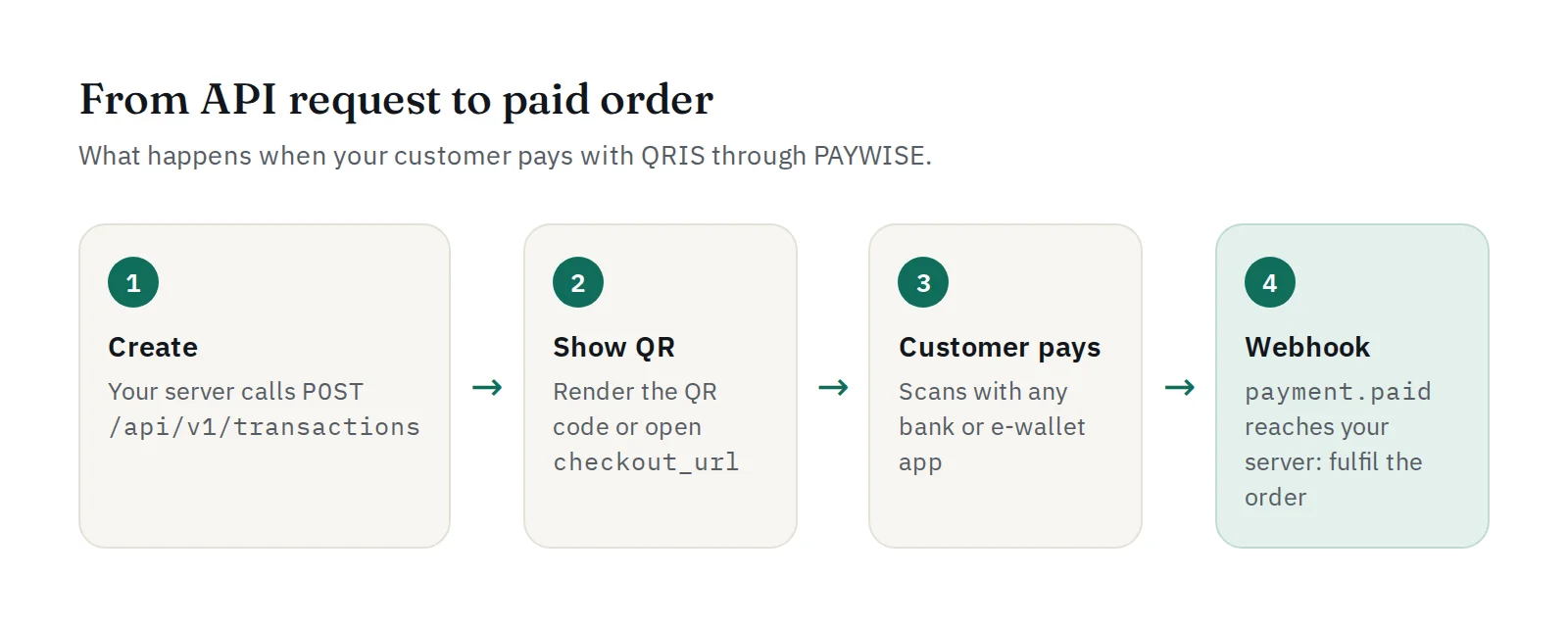
Step 1: Create the payment
When your customer checks out, your server creates a transaction:
curl -X POST https://paywise.asia/api/v1/transactions \
  -H "Authorization: Bearer pw_test_..." \
  -H "Content-Type: application/json" \
  -d '{"merchant_reference":"ORDER-1001","customer_id":"user-42","amount":150000,"payment_method":"QRIS"}'
merchant_referenceis your own order ID. If a request times out and you send it again, PAYWISE returns the original transaction instead of creating a second one.customer_id(required) is your own ID for the customer, for example a user ID or email, so you can see who paid.amountis in whole rupiah, from 1,000 to 10,000,000 per payment.expires_in(optional) sets how long the QR code can be paid, from 60 to 1,200 seconds (the default).
Step 2: Show the QR code
The response contains the QR data. You can draw the QR code on your own page, or simply send your customer to checkout_url: a PAYWISE payment page with the QR code, a countdown and the payment status, which updates by itself. The payment page is turned on per website in your dashboard.
Step 3: Confirm the payment with a webhook
Your customer scans the code with their banking or e-wallet app and pays. PAYWISE then sends a payment.paid webhook to your server. Fulfil the order on that webhook, after checking its signature, not on the customer's return to your website: anyone can type a return URL.
Read Verifying webhook signatures to see how.
Step 4: Go live
When your sandbox tests pass, create a live key (pw_live_...) and replace the sandbox key. Your code stays the same. Paid QRIS transactions are then settled in batches during the day and can be withdrawn to your bank account, see Settlement and withdrawals, explained.
Good to know
- You only pay a fee on paid transactions. Pending, failed and expired ones cost nothing. See the pricing page for the current rate.
- Every API call is logged in your dashboard with its status and request ID, which makes debugging easy.
- The full reference is in the API documentation.