

How to set up QRIS for your online shop, without the hassle
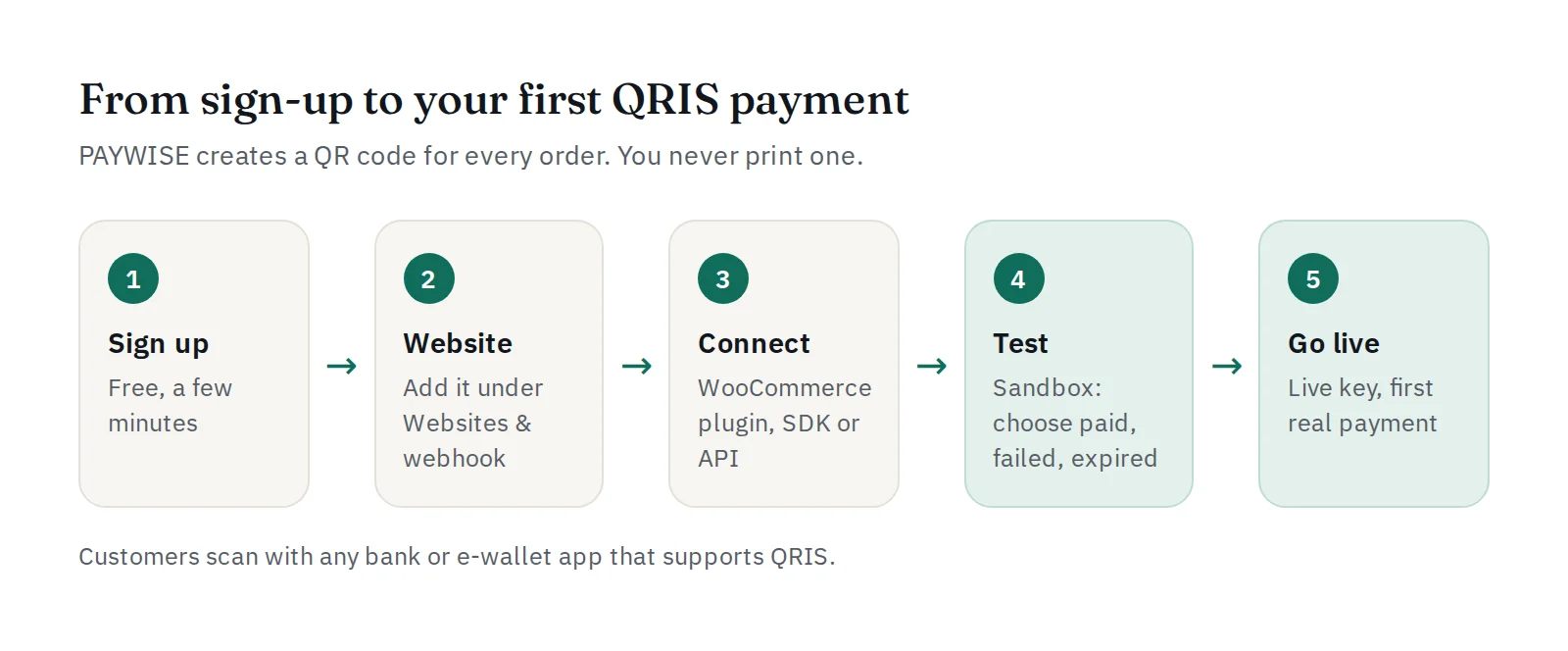
Accept QRIS on your website in five steps: sign up, add your website, connect with the WooCommerce plugin, SDK or API, test in the sandbox and go live.
Published 11 October 2026 3 min read

QRIS lets your customers pay by scanning one QR code with any bank or e-wallet app that supports QRIS. For a shop at a market stall, one printed QR code is enough. For an online shop, you need something more: a QR code for every order, with the exact amount, that tells your shop automatically when it has been paid.
This guide shows how to get there with PAYWISE, step by step.
Static or dynamic QRIS?
A printed QR code is static: the customer types the amount, and you check your account to see whether the money arrived. Online, that means manual checking, wrong amounts and fake transfer screenshots.
An online shop needs dynamic QRIS: a new QR code for each order, with the amount already filled in and a time limit. PAYWISE creates one for every payment and marks the order paid when the money arrives. Read more in static vs dynamic QRIS.
Step 1: sign up
Create a PAYWISE account. It is free and takes a few minutes: your name, business name, category, email and a password. There is no setup fee and no monthly fee. After signing up, the Set up your account checklist on your dashboard shows the next steps.
Step 2: add your website
Open Websites & webhook and add the domain where your customers pay, for example shop.example.com. Here you can also turn on the hosted payment page and set the return URL, the page your customers go back to after paying.
Step 3: connect your shop
Choose the way that suits you:
- WooCommerce: install the PAYWISE plugin, paste your API key and set the webhook. No code needed. See QRIS and USDT in WooCommerce.
- PHP or Node.js SDK: a small library that creates payments and checks webhooks for you.
- REST API: for any other platform. One request creates a payment and returns a
checkout_urlto send your customer to, or aqr_stringto show the QR code yourself.
Not sure which one? Read 3 ways to accept payments on your website.
Step 4: test in the sandbox
Create a sandbox key (pw_test_…) under API Keys. Sandbox payments are never real: open the payment page and choose the result yourself, paid, failed or expired. Check that your shop reacts correctly to all three. See testing in the sandbox.
Step 5: go live
Create a live key (pw_live_…), put it in place of the sandbox key, and make one small real payment yourself. When it shows Paid in your dashboard and your order is marked paid, you are ready.
Good to know
- One QRIS payment can be from Rp1,000 to Rp10,000,000.
- A QR code stays payable for 20 minutes by default. With the API you can make it shorter (from 1 minute).
- The fee is 1% per paid payment. Failed and expired payments cost nothing. See the pricing page.
- Paid QRIS funds are settled in batches a few times a day, then you can withdraw them to your bank account. See settlement and withdrawals.
Stuck at any step? Message us on Telegram at @paywise_asia or open a ticket under Support.