

See PAYWISE from the inside with the demo account
The PAYWISE demo account shows a real merchant dashboard with sample payments and withdrawals, so you can look around before you sign up.
Published 11 October 2026 2 min read

Before you connect your shop, you probably want to know what the dashboard looks like. Which reports are there? How is a withdrawal shown? What does a payment look like from start to finish? The PAYWISE demo account answers these questions without any risk.
What the demo account is
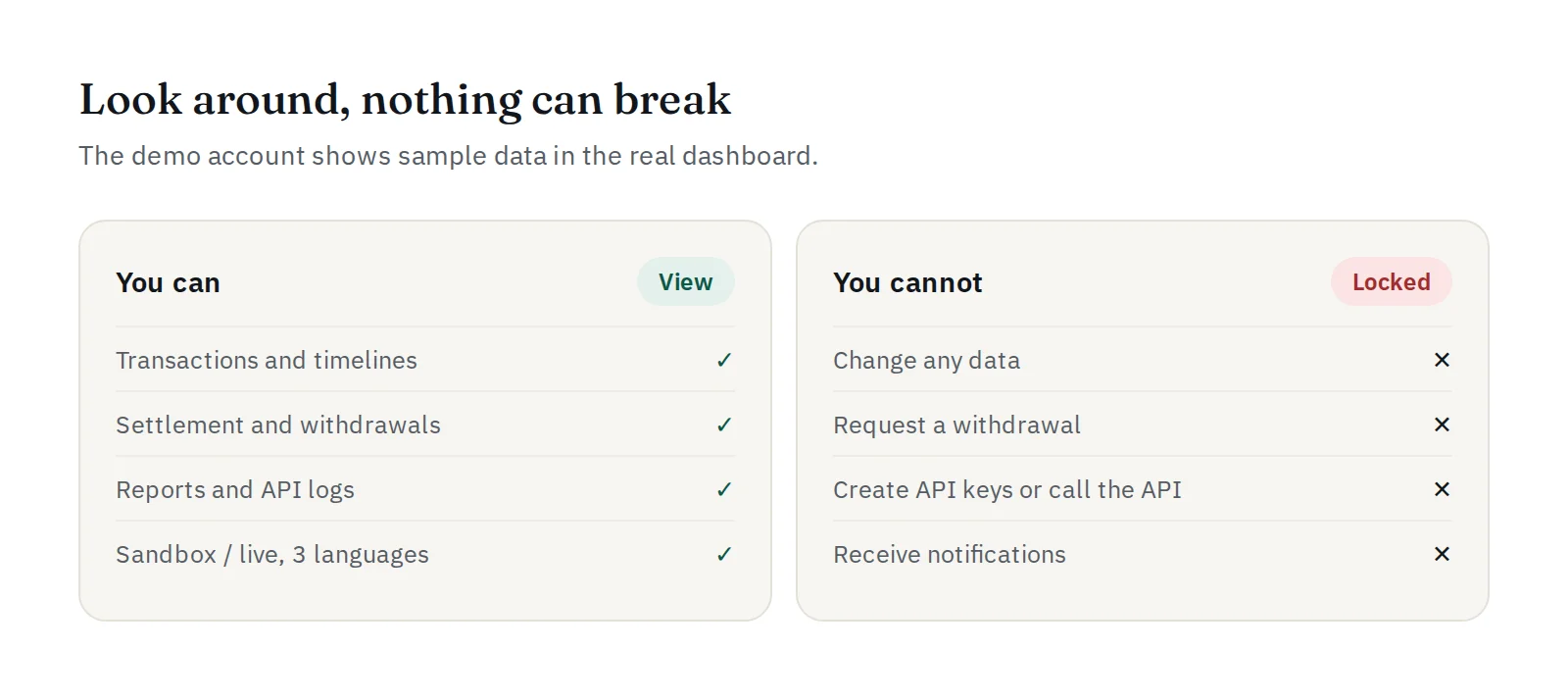
The demo account is a merchant account filled with sample data: paid, failed and expired payments, completed withdrawals and funds that are ready to withdraw. It uses the same dashboard as every real merchant, so what you see is what you will get.
What you can do
- Browse transactions and open one to see its timeline, from created to paid.
- Look at settlement and withdrawals, and see how fees and available funds are shown.
- Open reports, the API logs and the Websites & webhook page.
- Switch between sandbox and live views, and switch the language to English, Indonesian or Chinese.
What you cannot do
The demo account is read only. Nothing you click can change data, request a withdrawal or create an API key. It cannot call the API and it never sends notifications. The sample data is rebuilt every night, so it always looks fresh.
How to get access
Ask our team on Telegram at @paywise_asia for the demo sign-in details. It signs in through the normal sign-in page.
Ready for your own account?
When you have seen enough, sign up for free and follow our first-week checklist. There is no setup fee and no monthly fee: see how PAYWISE fees work.