

Your first week on PAYWISE: a checklist from sign-up to first payment
A day-by-day checklist for new merchants: business profile, website, sandbox key, webhook, testing and your first live QRIS or USDT payment.
Published 10 October 2026 Updated 11 October 2026 3 min read

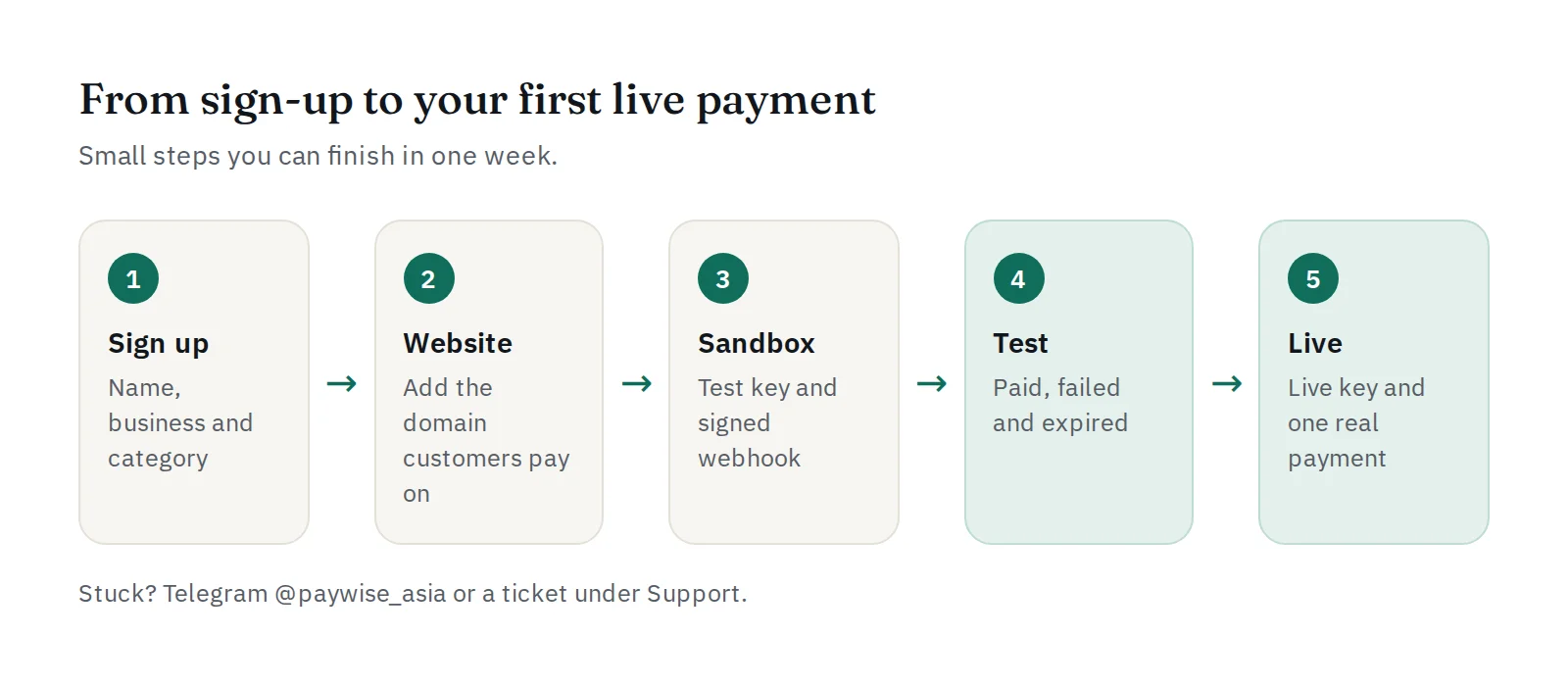
Signing up takes a few minutes. Getting to your first real payment takes a little more: your account, your website and your server all need to be ready. This checklist splits the work into small steps you can finish in your first week.
Day 1: your account
- Sign up as a merchant.
- Your account is ready right away. The Set up your account checklist on your dashboard shows the next steps and ticks them off as you go: website & webhook, API key and your first API request.
- Turn on good habits from day one: a strong, unique password, and only trusted devices marked as trusted. Read how to keep your PAYWISE account secure.
Day 2: add your website
Under Websites & webhook, add the domain where customers will pay. PAYWISE only sends customers back to websites you added, so this step matters. If your shop uses more than one domain, see mirror domains.
Day 3: sandbox key and webhook
- Create a sandbox API key (
pw_test_…). Sandbox payments are not real, and you choose whether they end paid, failed or expired. - Save your webhook URL (it must use
https://) and copy the signing secret to your server. - Press Send test webhook to check that your server receives the signed ping.
Day 4: build and test
Create a payment with POST /api/v1/transactions, send the customer to the checkout_url, and mark the order paid only when your server receives a valid payment.paid webhook. Test all three outcomes in the sandbox, and test a retry with the same merchant_reference.
No code? The WooCommerce plugin does all of this for you.
Day 5: go live
- Switch the dashboard to Live and create a live key (
pw_live_…). Keep it on your server only. - Set allowed IPs on the key if your server has a fixed address.
- Make one small real payment yourself, from start to finish, and check that the order is marked paid.
Days 6–7: money and team
- Learn when your funds become available. You enter the bank account (QRIS) or BEP20 wallet (USDT) on the withdrawal form each time you withdraw; a bank account is checked with the bank first, so you see the holder's name before you confirm.
- Add your team members with the right role: Finance for withdrawals, Developer for API keys and webhooks.
Stuck at any step?
Contact us on Telegram at @paywise_asia, or open a ticket under Support in your dashboard. Tell us your merchant name, your website and what you see, and we will help you finish.