

Add QRIS and USDT to your WooCommerce checkout
The free PAYWISE plugin adds QRIS and USDT (BEP20) to WooCommerce and marks orders paid automatically. Here is how to set it up in four steps.
Published 03 October 2026 2 min read

Running a WordPress store? The PAYWISE for WooCommerce plugin lets your customers pay with QRIS or USDT at checkout, without writing any code. Orders are marked as paid automatically.
What you get
- QRIS and USDT (BEP20) as payment methods,
- the PAYWISE payment page with the QR code or the deposit address, and a countdown,
- orders marked paid by a signed webhook, even if the customer closes the page after paying,
- support for the classic and the block checkout.
It needs WordPress 6.4+, WooCommerce 8.0+ and PHP 7.4+.
Set it up in four steps
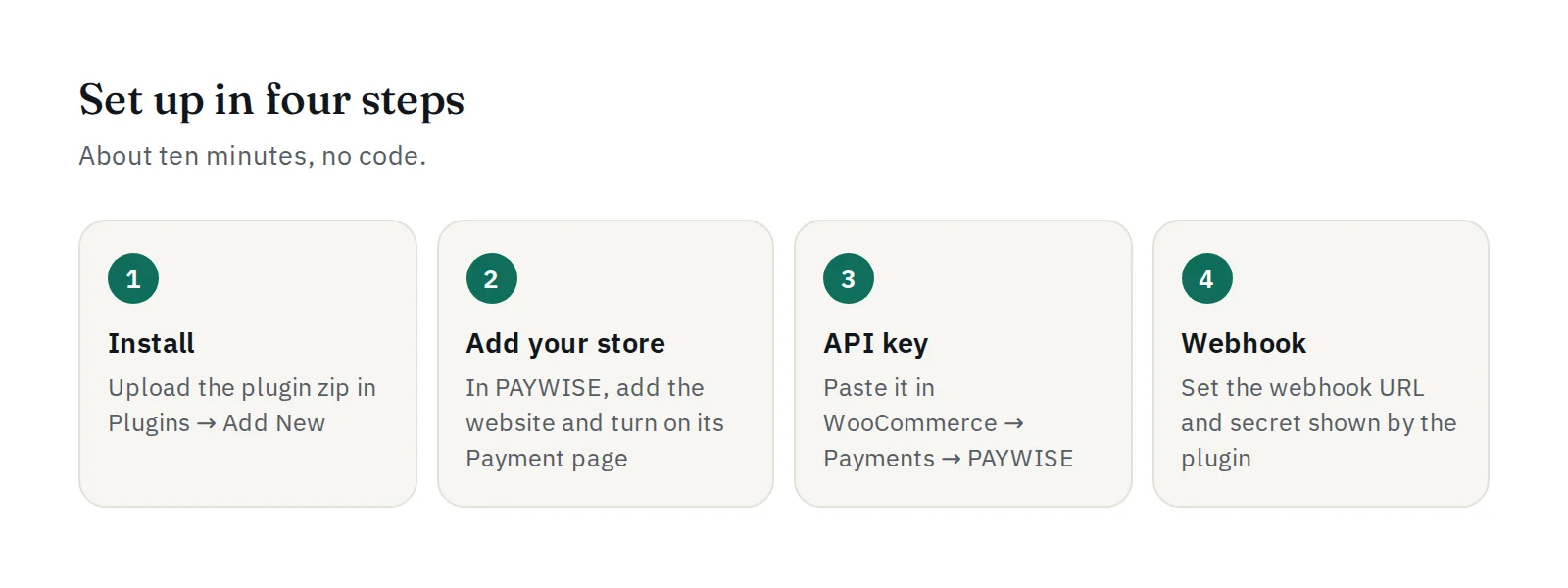
- Install the plugin. Download it from the Developers page, then in WordPress go to Plugins → Add New → Upload Plugin, choose the zip and activate it.
- Add your store in PAYWISE. In your dashboard, open Payment page, add your store's domain and turn its payment page on.
- Paste your API key. Create a key in your dashboard, then go to WooCommerce → Settings → Payments → PAYWISE QRIS, paste the key and enable it. To accept USDT, also enable PAYWISE USDT.
- Set the webhook. In PAYWISE, set your website's webhook URL to
https://your-store/?wc-api=paywise, and paste its webhook secret into the plugin settings.
Which currency does my store need?
- QRIS: Indonesian rupiah (IDR).
- USDT: USDT, or US dollars with the "Charge USD prices as USDT" option turned on (1 USD = 1 USDT). PAYWISE never converts currencies.
Test before you go live
Start with a sandbox key (pw_test_...). Place an order in your store, and on the PAYWISE payment page choose Paid, Failed or Expired under "Simulate the result". Check that the order status changes as expected, then replace the key with a live one.
If a payment expires, the order becomes Failed and the customer can pay again from their order page; a new payment is created for them.