

How to stop fake transfer receipts in your online shop
Edited screenshots and fake receipts cost online shops real money. Learn the common tricks, simple habits that protect you, and how automatic payment confirmation removes the problem.
Published 04 October 2026 2 min read

"Here is my transfer receipt, please ship today." For many online sellers, this message is the start of a loss: the receipt is fake, and the goods are gone. Here is how to protect your shop.
Common tricks
- Edited screenshots: a real receipt with the amount, date or name changed.
- Fake receipt generators: apps and websites that create receipts that look exactly like a bank's.
- Partial payments: a real transfer for less than the order, hoping nobody checks the amount.
- "Wrong transfer" refunds: someone sends money "by mistake" and asks you to refund it, often to a different account.
Simple habits that help
- Never treat a screenshot as proof. Only money that appears in your own account statement counts.
- Check the amount and the time in your bank app, not in the chat.
- Do not ship before the money has arrived, however urgent the customer sounds.
- Refund only to the original sender, and only after you see the incoming money yourself.
These habits work, but checking every payment by hand is slow, especially on a busy day.
The real fix: automatic confirmation
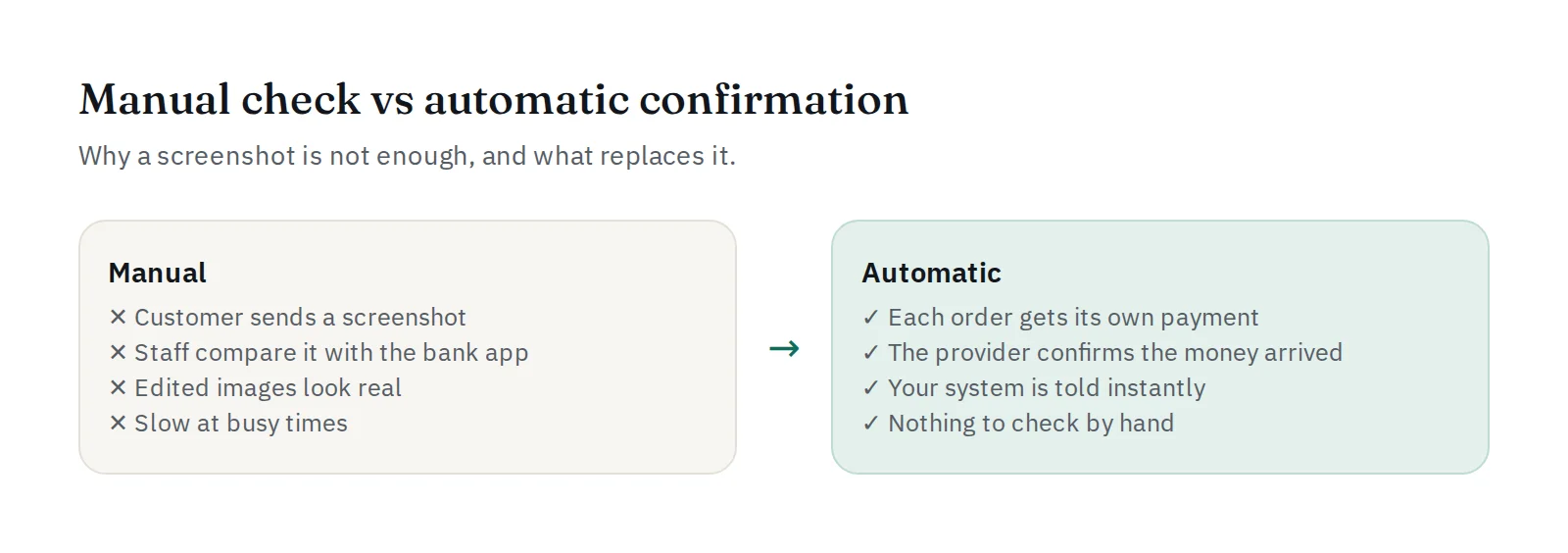
With a payment gateway, every order gets its own payment, for example a dynamic QRIS code with the exact amount. When the customer pays, the provider confirms the payment and your system is told automatically through a webhook. There is no screenshot to check, because the confirmation does not come from the customer at all.
With PAYWISE:
- each QRIS or USDT payment is created for one order and one amount;
- PAYWISE checks the payment with the provider before marking it paid;
- your server receives a signed
payment.paidwebhook, so your order is marked paid without anyone looking at an image; - a USDT payment short of the exact amount is not marked paid.
Important: the status in a return URL after checkout is only for showing a message. Fulfil orders on the webhook or by checking the transaction through the API. See Verifying webhook signatures.
Getting started
If you sell on WooCommerce, the PAYWISE plugin gives you automatic confirmation without code. Other websites can use the API.