

How to protect your payment API keys: 7 practical rules
An API key can create payments and request withdrawals in your name. Here is where to keep it, how to limit it to your own servers, and what to do if it leaks.
Published 07 October 2026 3 min read

Your API key is the password your website uses to talk to PAYWISE. Whoever has a live key can create payments in your name and, through the API, request withdrawals to the payout account you set. That makes it worth a few minutes of care.
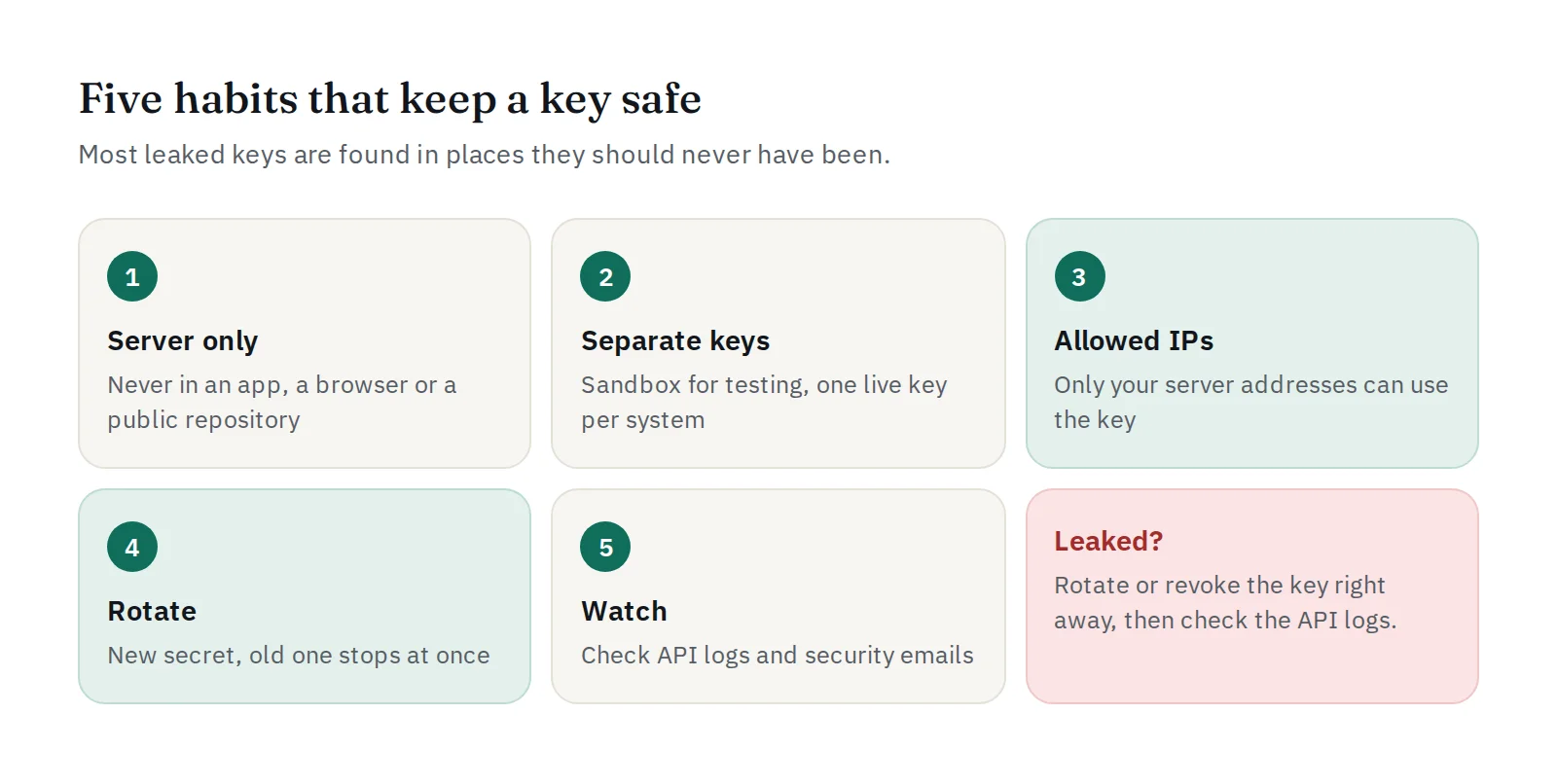
1. Keep the key on your server only
The key belongs in your backend: the server code that customers never see. Never put it in:
- a mobile app, a desktop app or browser JavaScript (anyone can unpack them),
- a public or shared code repository,
- a screenshot, a chat message or a support ticket.
Store it in an environment variable or a secrets manager, not in the code itself:
# .env (never committed)
PAYWISE_API_KEY=pw_live_...
If your app needs a payment, the app asks your server, and your server calls PAYWISE.
2. Save it when you create it
PAYWISE stores only a fingerprint of each key, not the key itself, so the full key is shown once, right after you create it. Copy it straight into your secrets store. If you lose it, simply create a new one.
3. Use separate keys
- Sandbox keys (
pw_test_...) only work on test transactions. Use them for development and staging. - Live keys (
pw_live_...) move real money. Give them only to production. - Create one live key per system (for example your shop and your billing server) with a clear label. If one system has a problem, you can replace its key without touching the others.
4. Allow only your servers' IP addresses
On the API Keys page you can set allowed IPs for each key: single addresses or CIDR ranges, up to 50. A request from any other address is refused with 403 IP_NOT_ALLOWED, even if the key is correct. A stolen key then becomes useless outside your servers.
Not sure which address your server uses? Open your API logs: every request shows the IP it came from.
5. Rotate keys from time to time
Rotate creates a new secret with the same label and the same allowed IPs, and the old secret stops working at once. To rotate without downtime:
- Plan a short moment when you can update your server.
- Click Rotate and copy the new key.
- Put it in your environment variable and restart or reload the app.
- Check the API logs: requests should succeed with the new key.
Rotate after a team member with access leaves, after a server move, and on a regular schedule.
6. Watch what your keys do
- API logs show every request with its status, IP and request ID.
- Each key shows when it was last used. A key that should be idle but is being used needs a closer look.
- PAYWISE sends a security email when a key is created, rotated or revoked. If you did not do it, act immediately.
7. If a key leaks
- Rotate it, or revoke it if the system no longer needs a key. A revoked key answers
401 API_KEY_REVOKED. - Check the API logs for requests you do not recognise.
- Check your recent withdrawals and your payout account details.
- Change your dashboard password and sign out other sessions if you think your account was exposed too. See keep your merchant account secure.
Quick checklist
- Key in an environment variable on the server, nowhere else.
- Sandbox keys for testing, one labelled live key per system.
- Allowed IPs set on every live key.
- Rotation planned, security emails read.
Your webhooks need the same care: always verify their signatures, so nobody can fake a "paid" message. For more, see the API documentation.